Company
You pay employees or contractors
The company path is two checks, a contract, and money on the balance. Until the checks pass, the account stays closed; until a signed contract exists, the balance cannot be funded. After that it moves quickly: invite people and file a payout.
Step 1/10
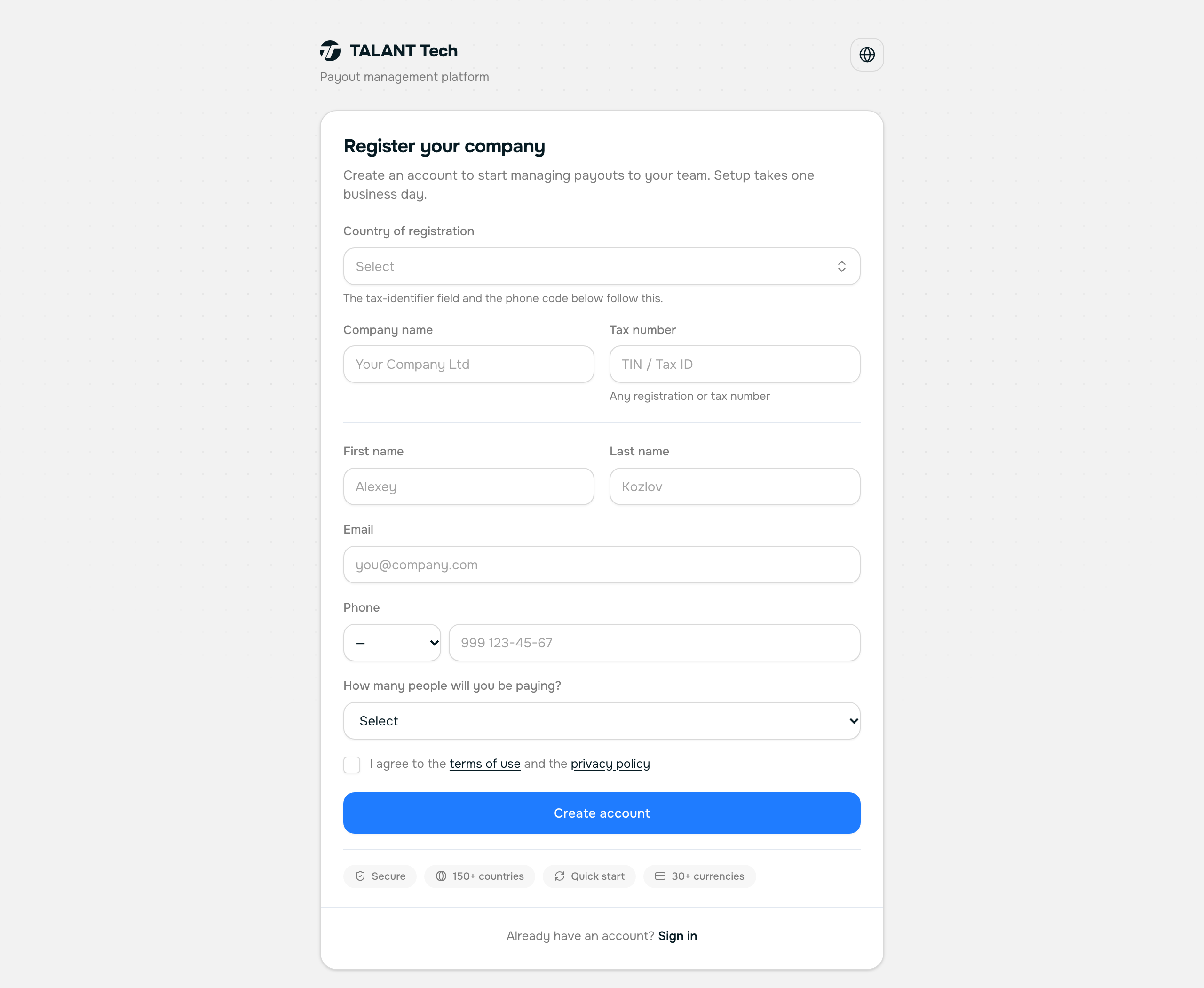
Sign up
talant.tech/register
Fill in the form: company, country, your name, email, phone. Choose a password. A code arrives by email — enter it.
We create the account with the status «awaiting review» and tell a manager about the new registration.
The company questionnaire opens. The rest of the account stays closed — there is nothing to do in it until we know who you are.
Step 2/10
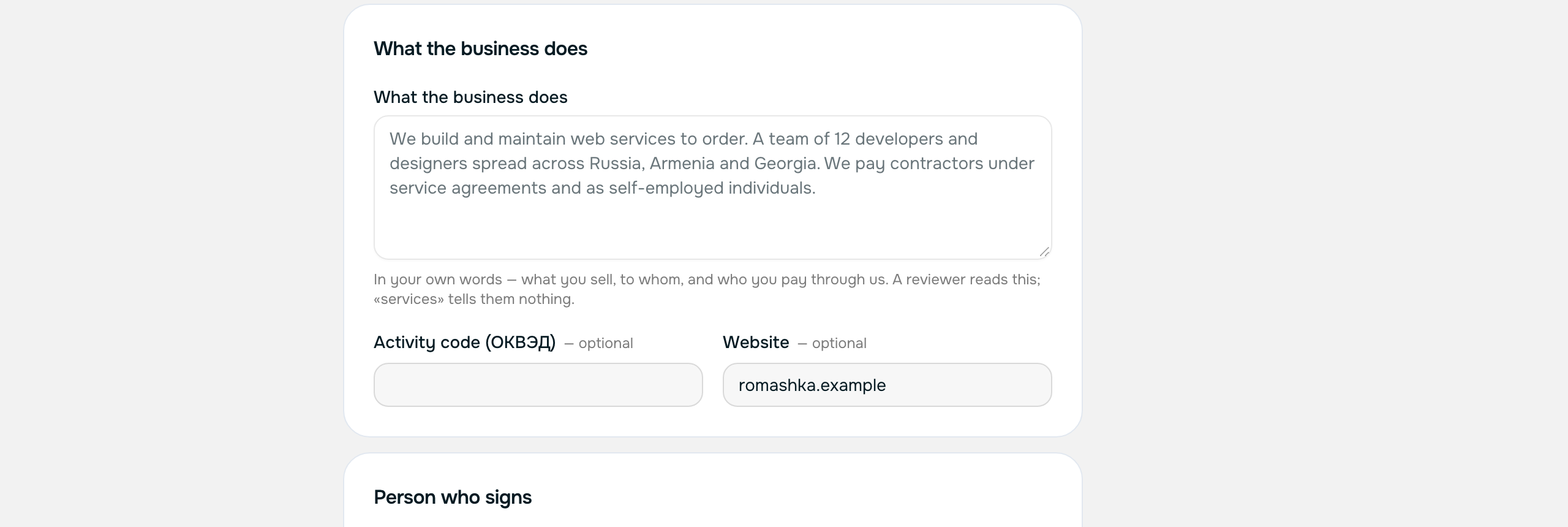
Company questionnaire
talant.tech/account/kyb
Describe what the company does, its legal name, tax and registration numbers, address, and who signs contracts and on what authority. Attach the charter and a registry extract if you have them.
We check the details against the registry and against your own site, and confirm the company exists and does what it says. Usually answered the same working day.
Identity verification of the signatory — it is on the same page and can be started straight away, without waiting for our answer on the questionnaire.
Step 3/10
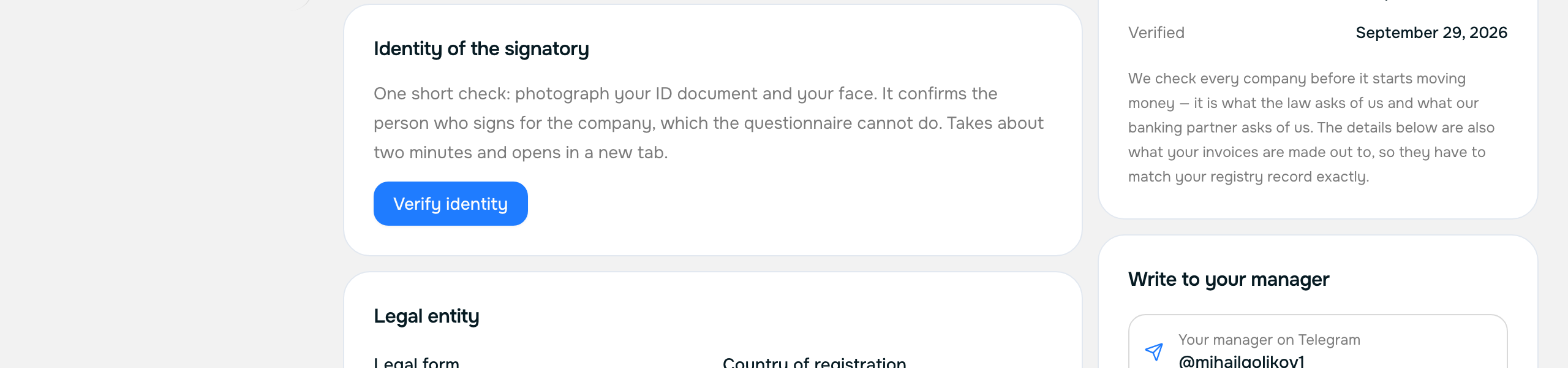
Verify the signatory's identity
talant.tech/account/kyb
Press «Verify identity». A Veriff tab opens: photograph your ID document and your face. Two minutes.
The decision reaches us from Veriff and appears in your account. Usually within minutes, sometimes up to a day when it is reviewed by hand.
Together with an approved questionnaire, this opens the account in full.
Step 4/10
Account opens, manager gets in touch
Nothing. The decision arrives by email on its own.
We approve the questionnaire, the account becomes active, and a named manager is assigned to you — their contacts are in the right-hand column of every screen.
The contract. We draft it around your case: recipient countries, currencies, volumes.
Step 5/10
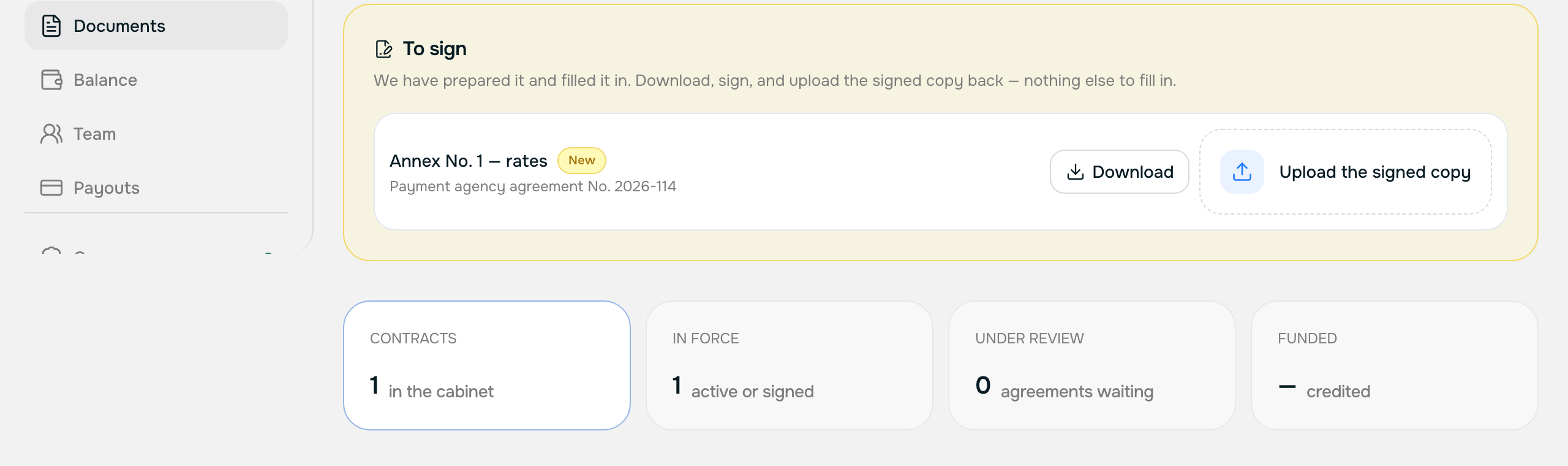
Contract: receive, sign, upload
talant.tech/account/contracts
A panel at the top of the Documents page holds the contract waiting for your signature. Download it, sign it, upload the signed copy back through the same panel.
We check the signature and countersign. The document becomes a live contract.
A live contract is what allows the balance to be funded. Without one an invoice can be raised but money cannot be credited.
Step 6/10
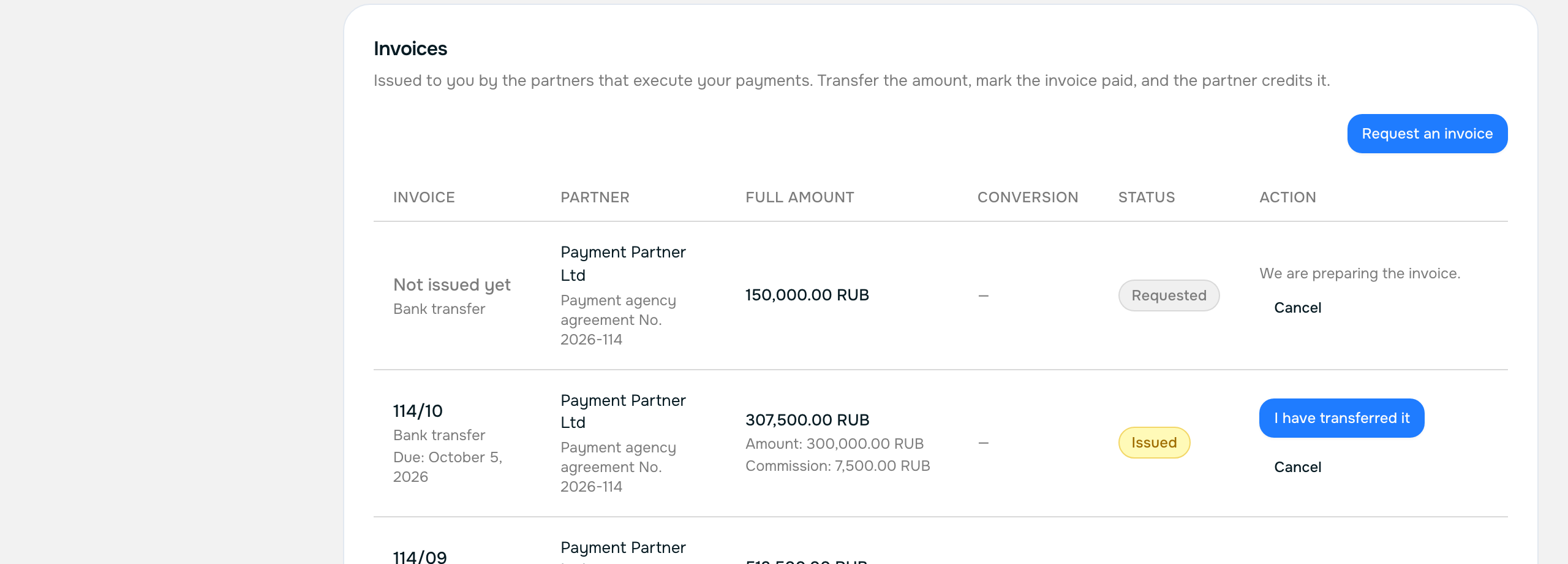
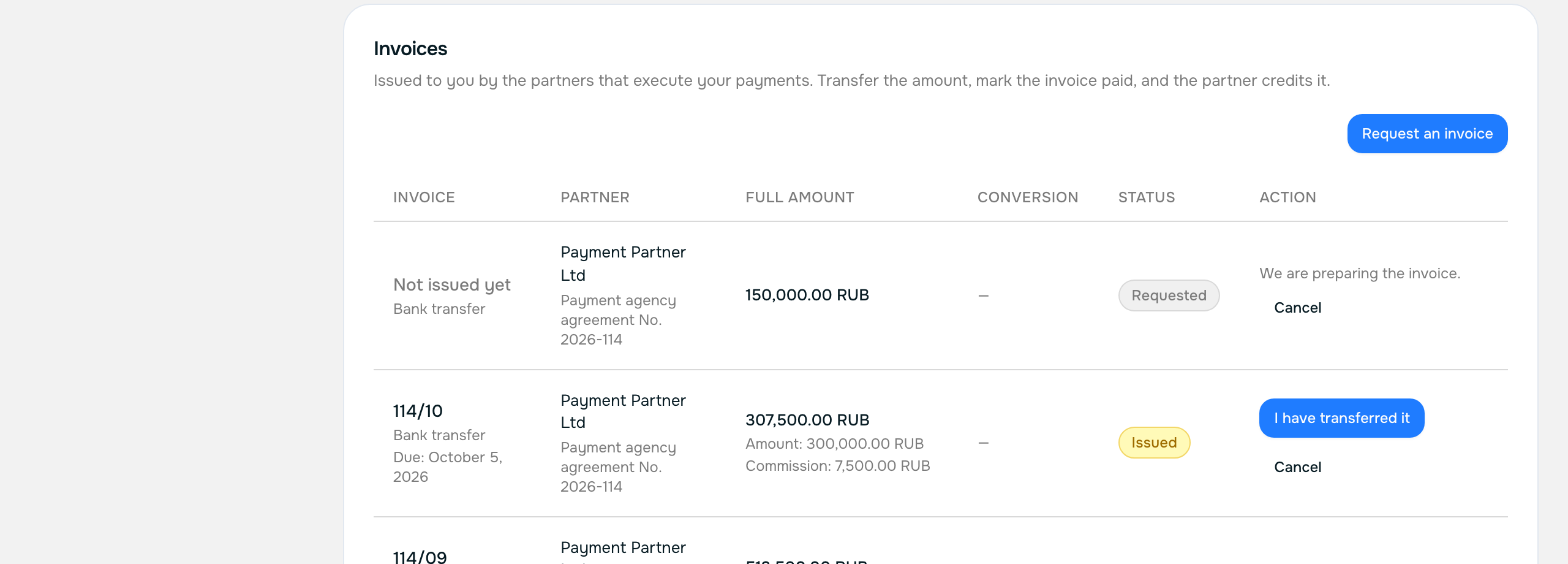
Request an invoice
talant.tech/account/balance
«Request invoice», above the invoice table. Give the amount, the currency, and who the request goes to.
The request reaches the payment partner. They raise the invoice, attach the file and assign a number — the row changes from «number pending» to a real invoice with a document.
Payment against the details on the invoice.
Step 7/10
Pay the invoice
talant.tech/account/balance
Transfer the money using the details on the invoice — roubles, SWIFT or USDT, whichever it names. Then press «Mark as paid» on that invoice row.
We see that you have transferred and wait for the money to land. Once it does, the partner credits the invoice and the amount appears on your balance, in the currency and at the rate recorded on the row.
The balance is funded. Payouts can be filed.
Step 8/10
Invite someone
talant.tech/account/team
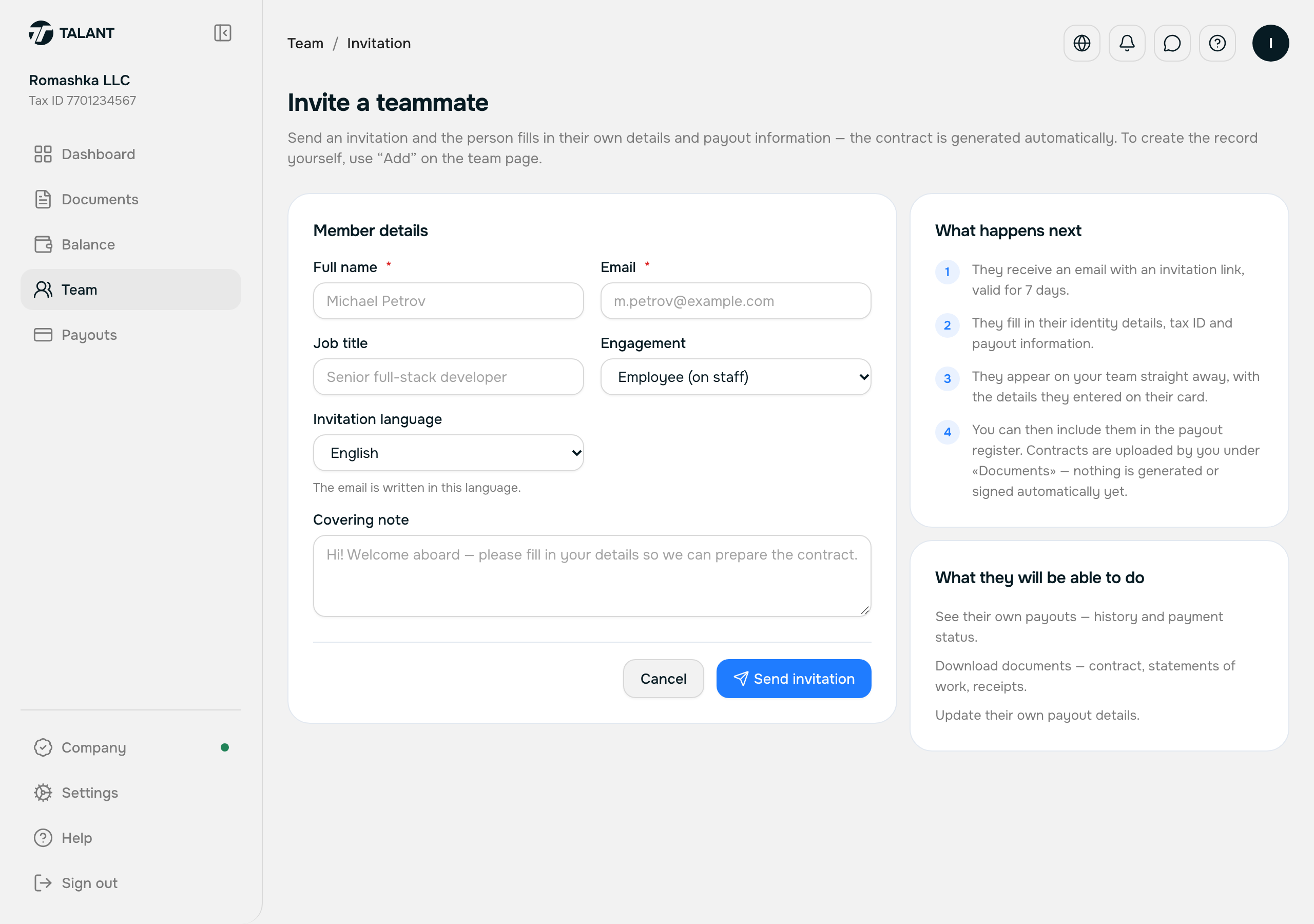
«Add a team member» — name, email, engagement type, country. The invitation goes out by email with a link; you pick the language of that email right there.
We create their record and send the link. Sending it again revokes the previous one — exactly one link is ever live.
They follow the link, set a password, verify their identity and add their payment details. Their path is in the recipient guide.
Step 9/10
File a payout
talant.tech/account/payments
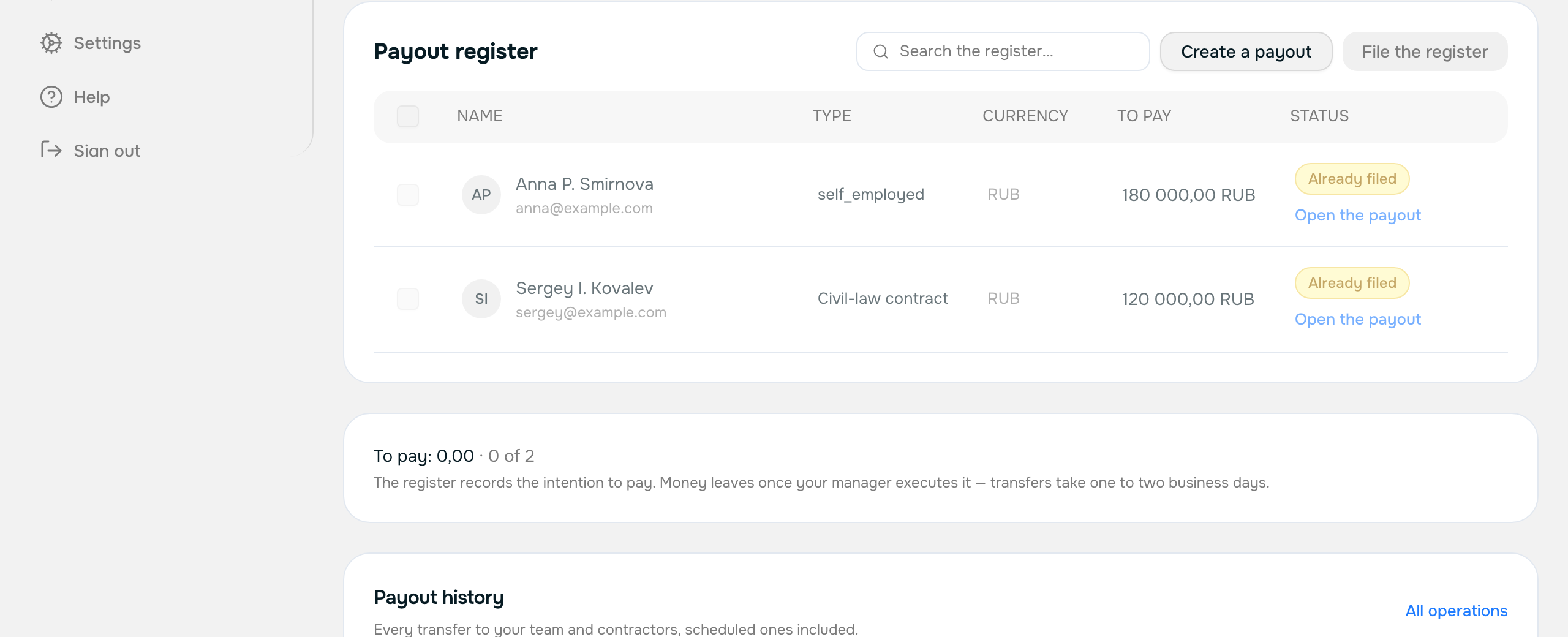
Tick who is being paid in the register and press «File payout». One-off payouts work too — a specific amount to a specific account.
We record the payouts and hand the register to the payment partner for settlement. The status of every row is visible to you and to the recipient.
Step 10/10
Reporting documents
talant.tech/account/contracts
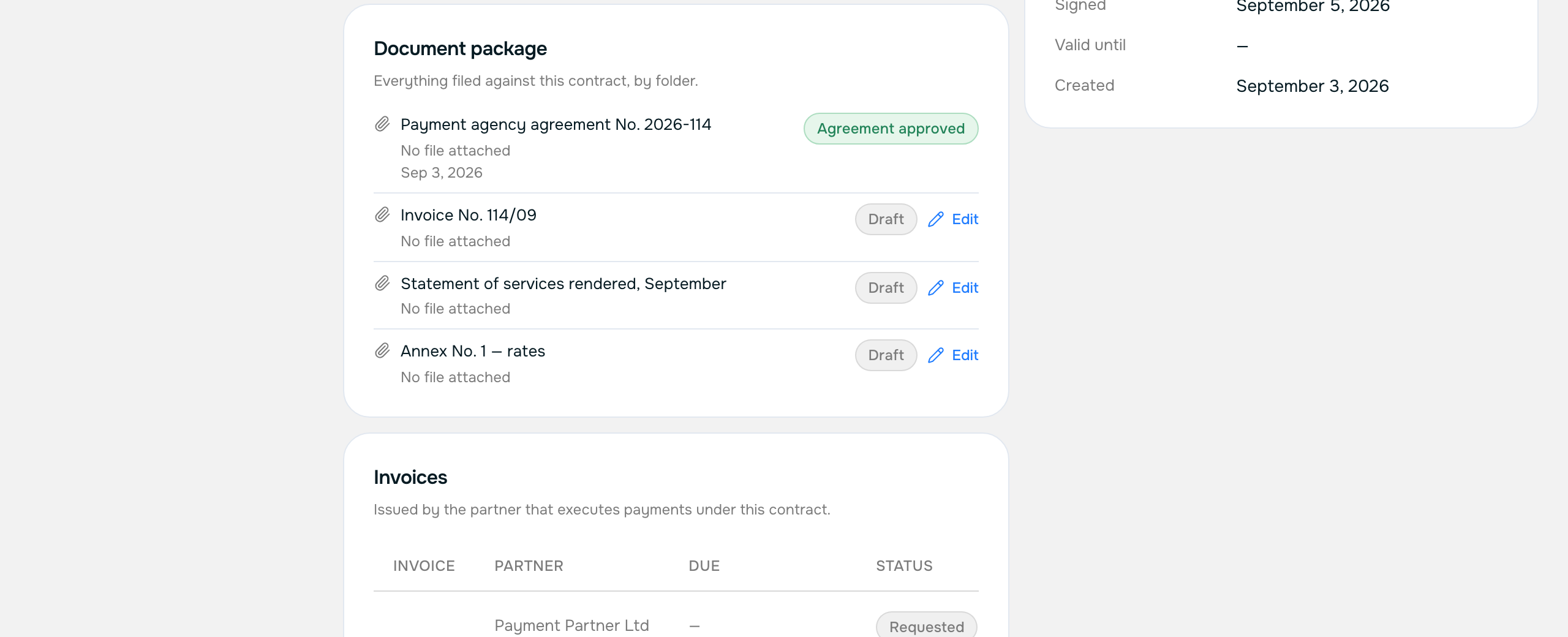
Open a contract. The documents inside are grouped into folders: the agreement, acts, invoices, annexes. You can file your own document from there too.
Acts and closing documents for completed payouts go into the «Acts» folder of the contract they belong to.
Stuck?
Message your manager on Telegram — @mihailgolikov1 — or write to [email protected]. The same contacts sit in the right-hand column of every screen in your account.